Privacy: VPN.com research ledger, cited. Counts, apps, plans: provider-stated, checked Oct 15, 2026. How we score →
Your Mac already has solid built-in security, but it does not encrypt your internet traffic or hide your IP address from your ISP. A VPN fills that gap. The challenge is finding one that works seamlessly on macOS without slowing you down or missing key features.
This comparison covers the leading VPN apps for both Intel and Apple Silicon Macs, looking at connection speeds, macOS-specific features, App Store availability, and ease of setup.
Top Mac VPN Apps Ranked
Below are our top picks. Each one offers a dedicated macOS app, strong encryption, and features that actually work on Mac.
NordVPN delivers the strongest combination of speed, security, and macOS integration. Its Mac app is native on Apple Silicon. The kill switch works at the system level, and the Threat Protection feature blocks ads and trackers without a browser extension.
Pros:
Fast speeds on macOS with WireGuard/NordLynx
Full-featured Mac App Store version
Meshnet feature lets you route traffic through your own devices
No-logs policy NordVPN says has been audited
Cons:
Mac app occasionally requires re-authentication after sleep
Premium price compared to Surfshark
Mac-specific note: Download from NordVPN’s official site for the full-featured version. The Mac App Store version works well but may lag behind on updates.
ExpressVPN is one of the most polished Mac VPN apps. The interface is clean, and it runs natively on M1, M2, and M3 chips. Lightway is its proprietary protocol, built for speed.
Pros:
One-click connect with smart server selection
Lightway protocol built for speed and battery efficiency
Split tunneling works reliably on macOS Sonoma and Sequoia
24/7 live chat support
Cons:
More expensive than most competitors
Limited to 10 simultaneous connections
Mac-specific note: ExpressVPN’s Mac app uses a system extension (not a kernel extension), so it stays compatible with the latest macOS security requirements.
Surfshark gives you unlimited simultaneous devices at one of the lowest prices available. On Mac, the app is native for Apple Silicon and includes CleanWeb ad blocking, split tunneling (called Bypasser), and a kill switch.
Pros:
Unlimited devices per account
Starts at $2.49/mo on a 2-year plan
CleanWeb blocks trackers, ads, and malware domains
Dynamic MultiHop for extra privacy
Cons:
Speeds fluctuate more than NordVPN or ExpressVPN
Some advanced settings are buried in the UI
Mac-specific note: The Bypasser (split tunneling) feature on Mac lets you exclude specific apps or websites from the VPN tunnel.
CyberGhost labels its servers by streaming service (Netflix US, BBC iPlayer, Disney+), making it dead simple to access content on your Mac. It runs natively on Apple Silicon. If you primarily want a VPN to stream content on your Mac, CyberGhost is a strong choice.
Pros:
Dedicated streaming-optimized servers
45-day money-back guarantee (longest on this list)
9,600+ servers across 100 countries
Automatic Wi-Fi protection on Mac
Cons:
No Mac App Store version; must download from their site
No split tunneling on the macOS app
Slower on long-distance servers
Mac-specific note: CyberGhost’s kill switch on Mac blocks all traffic instantly if the VPN drops.
ProtonVPN offers a genuinely free tier with no data limits and no ads. The free plan gives you servers in 5 countries and decent speeds for browsing. The paid Plus plan accesses streaming support, Secure Core servers, and faster speeds on Mac. If you want a free VPN for Mac that you can trust, start here.
Pros:
Free plan with unlimited data (rare and legitimate)
Based in Switzerland with strong privacy laws
Open-source Mac app, independently audited
Secure Core routes traffic through privacy-friendly countries
Cons:
Free plan limited to servers in 5 countries
Free plan does not support streaming or P2P
Slightly slower than NordVPN and ExpressVPN on paid plan
Mac-specific note: ProtonVPN’s Mac app is available on the Mac App Store and supports IKEv2 and WireGuard natively.
6. Private Internet Access (PIA): Most Customizable Mac VPN
PIA gives power users full control. You can configure encryption levels, choose between WireGuard and OpenVPN, set per-app rules, and adjust DNS settings. On Mac, it offers one of the most flexible kill switches available.
Pros:
Granular control over encryption and protocol settings
Unlimited simultaneous devices
MACE ad and tracker blocker built in
Proven no-logs policy (verified in court twice)
Cons:
Interface can feel overwhelming for beginners
Not available on the Mac App Store
Based in the US (Five Eyes jurisdiction)
Mac-specific note: PIA’s split tunneling on Mac works at the app level.
What to Look for in a Mac VPN
Not every VPN works equally well on macOS. Here are the features that matter most for Mac users:
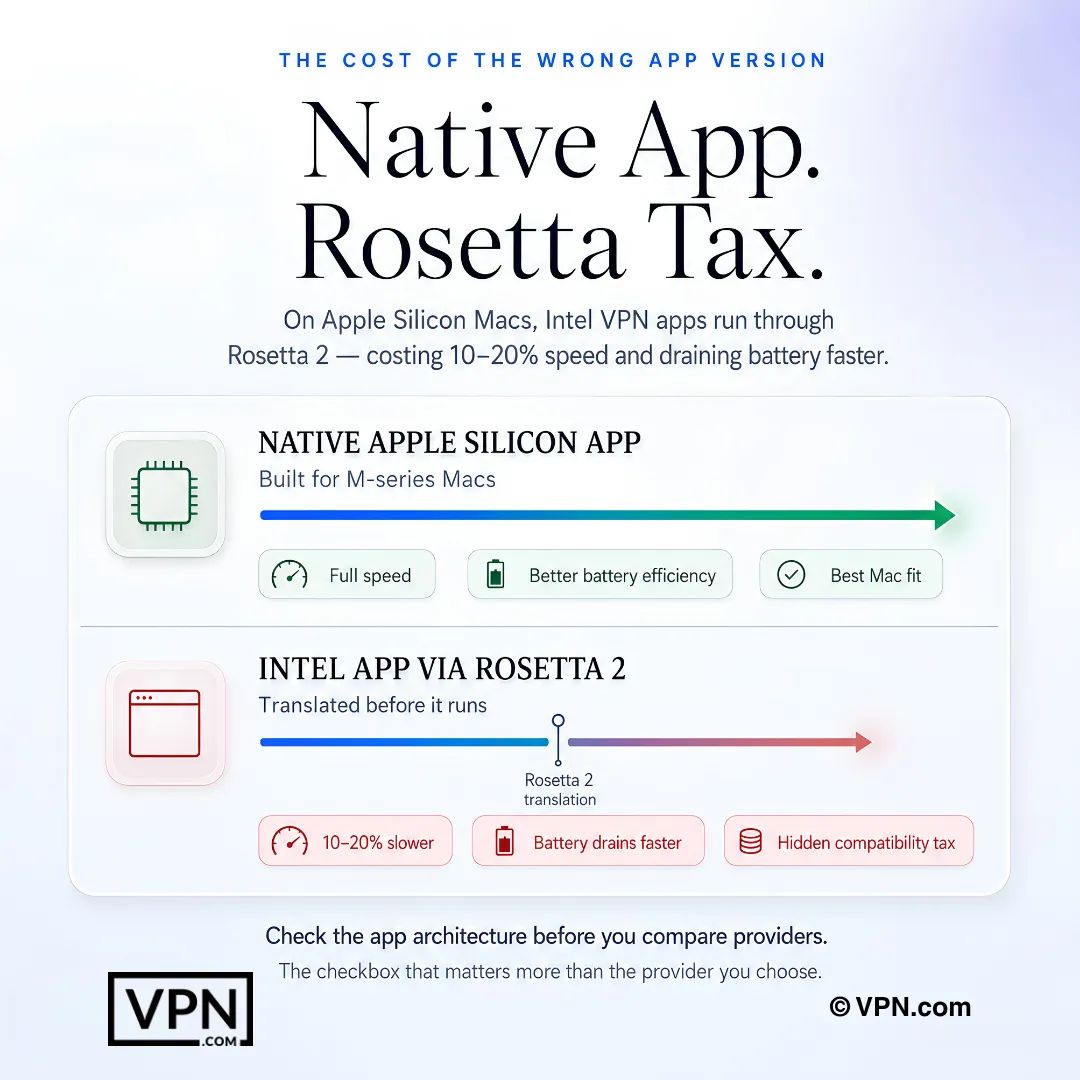
Apple Silicon support. If you have an M1, M2, M3, or M4 Mac, choose a VPN with a native ARM app. Running an Intel app through Rosetta 2 drains battery faster and can reduce speeds.
Kill switch behavior on macOS. macOS handles network interruptions differently than Windows. A good Mac VPN kill switch blocks all traffic at the firewall level, not just at the app level. NordVPN, ExpressVPN, and PIA all do this correctly.
Split tunneling. This lets you route some apps through the VPN and others through your regular connection. Useful when you want to stream foreign content while keeping local banking apps on your real IP. Not all Mac VPN apps support this; CyberGhost’s Mac app, for example, does not.
Network extension vs. kernel extension. Apple deprecated kernel extensions in macOS Big Sur. Modern VPN apps should use the Network Extension framework. All six VPNs above have migrated to this approach.
Mac App Store availability. Apps from the Mac App Store go through Apple’s review process and use sandboxing, which limits functionality. Some providers (CyberGhost, PIA) skip the App Store entirely to ship full-featured apps. Others (NordVPN, Surfshark) offer both versions. In most cases, the direct download version has more features.
How to Set Up a VPN on macOS
Setting up a VPN on your Mac takes less than 5 minutes. Here is the process:
Choose a VPN provider from the list above and create an account on their website.
Download the Mac app directly from the provider’s website (recommended) or from the Mac App Store.
Open the installer and drag the app to your Applications folder. macOS may ask you to approve a system extension in System Settings > Privacy & Security.
Log in with your account credentials.
Click Connect. Most apps auto-select the fastest server. You can also choose a specific country.
Verify your connection by visiting a site like ipleak.net to confirm your IP address has changed.
macOS tip: Dedicated VPN apps access features that the built-in VPN client cannot. Split tunneling lets you route specific apps through the VPN while others use your direct connection. A kill switch automatically blocks all traffic if the VPN drops. Neither feature is available through macOS System Settings manual configuration. Always download from the provider’s official website rather than the Mac App Store, where some providers ship stripped-down versions.
Optional: Manual IKEv2 setup. macOS has built-in IKEv2 VPN support in System Settings > VPN. This works if your provider supplies server addresses and certificates, but you lose split tunneling, kill switch, and auto-connect features. We recommend the dedicated app for most users.
Why Mac Users Need a VPN
Many Mac users assume macOS is secure enough on its own. It is more resistant to malware than Windows, but it does nothing to protect your internet traffic. Your ISP can see every site you visit. Public Wi-Fi networks expose your data to anyone on the same network. Content providers restrict access based on your location.
A VPN solves all three problems. It encrypts your traffic so your ISP and network snoops see nothing. It masks your IP so streaming services think you are in another country. It secures public Wi-Fi connections automatically.
If you also use an iPhone or iPad, the same VPN subscription usually covers those devices too.
Free vs. Paid VPNs for Mac
Free VPNs are tempting, but most come with serious trade-offs:
Feature
Free VPNs
Paid VPNs
Speed
Throttled (50-200 Mbps typical)
Full speed
Data caps
Common (500 MB-10 GB/month)
Unlimited
Server locations
3-5 countries
60-100+ countries
Streaming support
Rarely works
Reliably accesses Netflix, Hulu, etc.
Kill switch on Mac
Usually missing
Included
Split tunneling on Mac
Usually missing
Included on most apps
Logging policy
Often unclear or invasive
No-logs policies with published audits
Our recommendation: ProtonVPN’s free plan is the only free Mac VPN we trust. It has no data cap, no ads, and a clear no-logs policy. For anything beyond basic browsing, a paid plan from NordVPN or Surfshark is worth the $2-4/month investment.
Final Verdict
For most Mac users, NordVPN is the best overall choice. It ranks #1 of 22 on our Trust Score, aggregated from published third-party tests, and offers a native Apple Silicon app, a system-level kill switch, and a full-featured Mac App Store version. If budget matters more, Surfshark gives you unlimited devices for around $2/month. And if you want a free starting point, ProtonVPN is the only free Mac VPN worth using.
No matter which provider you pick, download the app directly from the provider’s website for the best macOS experience.
Resources for this page
Charts and reference images from our research, free to view and share.
On Apple Silicon Macs, choosing a native VPN app can avoid the hidden Rosetta compatibility tax.
What’s the difference between using a dedicated Mac VPN app and macOS’s built-in IKEv2 client?
The built-in IKEv2 client in System Settings > VPN only works if your provider supplies server addresses and certificates, and it drops split tunneling, kill switch, and auto-connect entirely. Dedicated apps use Apple’s Network Extension framework, the successor to kernel extensions deprecated in macOS Big Sur, which all six VPNs reviewed here have adopted. Manual setup sacrifices real functionality for basic connectivity.
Which VPN is fastest for everyday use on a Mac?
NordVPN ranks #1 of 22 on our Trust Score, aggregated from published third-party tests, and its Mac app runs natively on Apple Silicon rather than through Rosetta 2 translation. That distinction matters: running an Intel-only app via Rosetta 2 on M1 through M4 chips can cut speeds and drains battery faster, a gap native ARM apps avoid.
Which VPN is best for accessing streaming platforms on a Mac?
CyberGhost, which labels servers by streaming service (Netflix US, BBC iPlayer, Disney+) so you connect to the right server without guesswork. It runs natively on Apple Silicon and ranks #3 of 22 on our Trust Score, aggregated from published third-party tests. It also backs streaming subscribers with a 45-day money-back guarantee, the longest refund window among the Mac VPNs reviewed here.
How trustworthy is NordVPN’s no-logs claim on its Mac app?
NordVPN says its no-logs policy has been independently audited, and its Mac app enforces the kill switch at the system firewall level rather than just the app level, so traffic stops completely if the connection drops. NordVPN also runs Threat Protection natively, blocking ads and trackers without needing a separate browser extension installed alongside the VPN app.
Is ProtonVPN’s free Mac plan good enough for daily use?
It depends on your needs. ProtonVPN’s free tier has no data cap and no ads, unusual for a free VPN, but it restricts you to servers in 5 countries and drops support for streaming and P2P entirely. The paid Plus plan removes those restrictions and adds Secure Core servers, starting around $4.99/month for Mac users.
Does split tunneling work the same way across every Mac VPN app?
No. ExpressVPN’s split tunneling works reliably on macOS Sonoma and Sequoia, Surfshark calls its version Bypasser and lets you exclude specific apps or sites, and PIA implements it at the app level. CyberGhost’s Mac app skips split tunneling entirely, so if routing only some apps through the VPN matters, CyberGhost is the one to rule out.
How many devices can one Mac VPN subscription actually cover?
It varies by provider. NordVPN and ProtonVPN’s Plus plan both cover 10 simultaneous devices, ExpressVPN covers 10, and CyberGhost covers 7. Surfshark and PIA both allow unlimited simultaneous connections on one account, which matters if your household runs Macs, iPhones, and other devices under a single subscription.
How much should I expect to pay for a Mac-ready VPN?
Starting prices for Mac apps range from about $2.19 to $2.49 per month for CyberGhost, PIA, and Surfshark on longer plans, up to $3.49/month for NordVPN and $4.99/month for ProtonVPN’s Plus tier. ExpressVPN runs highest at $6.67/month. All six offer native Apple Silicon apps regardless of price tier.
What refund window applies if a Mac VPN app doesn’t perform well on my machine?
CyberGhost offers the longest window at 45 days. NordVPN, ExpressVPN, Surfshark, and ProtonVPN each back their Mac apps with a standard 30-day money-back guarantee. Test the app on your specific Mac model, Intel or Apple Silicon, within that window before committing to a longer subscription term.
How do I know my Mac VPN app is running natively on Apple Silicon instead of through Rosetta 2?
All six Mac VPNs reviewed here, NordVPN, ExpressVPN, Surfshark, CyberGhost, ProtonVPN, and PIA, ship native Apple Silicon (M1 through M4) apps when downloaded directly from the provider’s site. This matters because running an Intel-only build through Rosetta 2 translation reduces speeds by roughly 10 to 20 percent and drains battery faster. Stick to the direct-download version rather than an older cached installer.
Why does macOS ask me to approve a system extension when installing a VPN?
Apple requires apps to use the Network Extension framework instead of the kernel extensions it deprecated in macOS Big Sur, so installers prompt you to approve the extension in System Settings > Privacy & Security. ExpressVPN specifically built its Mac app on a system extension rather than a kernel extension to stay compatible with current macOS security requirements.
What if my Mac VPN keeps asking me to log in again after the laptop wakes from sleep?
This is a known quirk on NordVPN’s Mac app specifically, which can require re-authentication after sleep. Reopen the app and log in again rather than assuming the service is down. If it happens repeatedly, check that the app’s system extension is still approved under Privacy & Security, since macOS updates occasionally reset that permission.
We use cookies to understand how our site is used and, on some pages, to measure our ads. Accept to allow analytics cookies and personalized ads, or decline. If you decline, we only count visits without cookies. Privacy Policy