
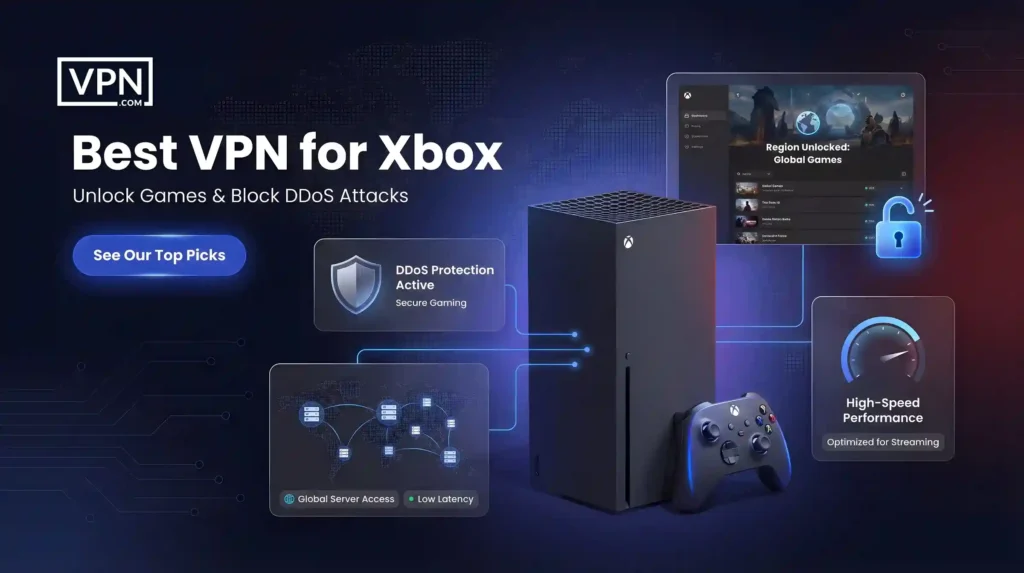
Xbox gaming opens up massive worlds and online friendships, but it also comes with real headaches: geo-restricted games, ISP throttling during peak hours, DDoS attacks and exposed data on shared networks.
A best gaming VPN solves all of this, unlocking region-locked content, smoothing out lag and keeping your connection encrypted. Here’s what every Xbox gamer needs to know.
Why Use a VPN on Xbox?
- Enhanced privacy: Gaming on public or shared networks exposes your data to hackers and attacks like MAC spoofing. A VPN encrypts your connection, keeping personal info locked down.
- Access geo-restricted content: Connect to servers in other countries to unlock games, DLCs and streaming apps unavailable in your region. You can even play titles before they launch locally.
- Reduce lag: Gaming-optimized VPN servers can route traffic along faster paths, lowering ping and stabilizing your connection.
- Avoid ISP throttling: ISPs slow down bandwidth-heavy activity like gaming. A VPN hides what you’re doing, so your speeds stay consistent.
- Block DDoS attacks: Competitive opponents sometimes try to knock you offline. A VPN masks your real IP, making you untargetable.
What to Look for in an Xbox VPN?
- Fast servers with minimal speed loss for lag-free gameplay
- Wide server coverage across 50+ countries to unlock regional content
- AES-256 encryption, no-logs policy and DDoS protection
- Router or Smart DNS support, since Xbox has no native VPN app
Top 3 VPNs for Xbox
The right VPN will boost your Xbox gaming with faster connections, access to geo-restricted content and security improvements.
Here are the best Xbox VPNs:
Before you go
Our top 3 VPN picks.
Tested for speed, privacy, and price.
NordVPN
Fastest speeds. 14M+ users.
ExpressVPN
Top privacy. 94 countries.
Surfshark
Unlimited devices. Best value.
30-day money-back guarantee across all picks.
How to Set Up a VPN on Xbox?
Xbox doesn’t support VPN apps natively, the same limitation PlayStation users face, so you’ll need one of the two methods.
Router Setup (Most Secure)
Confirm your router supports VPNs or use a VPN-compatible router. Log in to the admin panel, enter the VPN server address, credentials and protocol from your provider. Save, reboot, then connect your Xbox to Wi-Fi through Settings > Network > Set Up Wireless Network.
Share From PC or Mac
Install the VPN on your computer and connect it to Xbox via Ethernet, then enable Internet sharing. Alternatively, enable Mobile Hotspot on Windows and connect your Xbox to it.
If you experience lag, connect to a closer server and use Ethernet instead of Wi-Fi. If geo-restrictions persist, switch servers in the correct region and clear your Xbox cache. For connection errors, double-check router settings and restart both devices.
Best VPN for Xbox: FAQs
The Bottom Line
A VPN is no longer optional for serious Xbox gamers. It unlocks region-restricted games and streaming apps, lowers ping, blocks DDoS attacks and keeps your data encrypted. Since Xbox doesn’t support native VPN apps, a router setup or Smart DNS is the way to go.
For most users, ExpressVPN offers the best overall experience, NordVPN leads on security and Surfshark is the best budget pick. Choose the one that fits your setup and take your Xbox gaming to the next level.
Resources
- Xbox Series X – Official console and network capabilities
https://www.xbox.com - Microsoft – Xbox ecosystem and services
https://www.microsoft.com - ExpressVPN – Router and Smart DNS setup for Xbox
https://www.expressvpn.com - NordVPN – Advanced security and performance features
https://nordvpn.com - Surfshark – Budget-friendly VPN for multiple devices
https://surfshark.com